
Solar Powered Security Camera Information Hub | Section 6: Troubleshooting & Maintenance
If your phone does not alert you to camera activity, first check whether the event was detected and recorded. A missing notification is not necessarily a camera detection fault, and a silent phone does not prove that footage is unavailable.
Push messages depend on camera settings, account access, internet services and the phone's own notification controls. The most effective diagnosis checks those stages separately.
This guide covers a practical workflow for Australian homes, rural properties and temporary sites. Exact menus vary by camera app and phone. Use M05 when expected recordings are also missing, rather than changing notification settings to solve a recording problem.
1. Describe What Is Missing
Determine whether there is no alert at all, a visible notification without sound, delayed delivery or a message that appears only after opening the app.
Check the phone's notification history or notification centre where available. An alert may have arrived silently or been grouped with earlier messages.
Record whether every camera is affected or only one, and whether other authorised phones receive the event. Note recent changes to app permissions, schedules, accounts or network service.
Do not erase camera settings before preserving that information. The pattern often identifies which part of the system needs attention.
2. Confirm That a Relevant Event Occurred
Create a controlled movement event within the intended detection area. Check the event history and saved footage separately from the phone alert.
If detection did not occur, review the camera's active mode, coverage, zones and selected classifications. If detection occurred but footage is absent, continue with M05.
Do not raise sensitivity merely because the phone stayed silent when the camera already detected the event. That can increase recordings and energy consumption without repairing notification delivery.
Some systems provide a notification test function. Use it as an additional check, not proof that the real detection and recording configuration is correct.
3. Review Camera-App Notification Controls
Log in to the intended account and select the correct camera. Confirm that its push notifications are enabled, then review the event categories and notification schedule.
Recording and notification timetables can differ. A camera may save all supported events but notify you only about people or only during selected hours.
Check any home/away mode, scene, temporary mute or snooze function. A setting intended for one afternoon may still be suppressing alerts.
Manufacturer guidance illustrates the need to enable notifications both inside the camera app and in the phone's system settings. Follow the applicable controls for your model.
4. Check Phone Permissions and Presentation
Open the phone's notification settings for the official camera app. Confirm permission is allowed and review the relevant alert categories, sound, lock-screen display and banners where supported.
A visible but silent alert may involve presentation settings rather than a delivery failure. Check whether the category is set to silent and whether the expected sound is enabled.
Avoid assuming that the controls on one Android brand match another, or that every iPhone software version uses identical menus. Use the phone manufacturer's current instructions where necessary.
Grant the notification permissions needed for the intended function. Enabling unrelated permissions is not a universal solution.
5. Review Focus, Do Not Disturb and Scheduled Delivery
Check whether a phone mode is silencing the app at particular times or locations. Sleep, work or driving-related settings may operate automatically.
On iPhone, Apple's Focus guidance explains controls for permitted notifications and automatic schedules. Also check any scheduled notification summary if alerts arrive later than expected.
On Android, Google's Do Not Disturb guidance explains how interruption controls and permitted apps can affect alerts. Available settings vary between devices.
If you want camera alerts during a quiet period, configure an appropriate app exception where supported. There is no need to disable all quiet settings or allow every app to interrupt you.
6. Check the Phone's Network and App Restrictions
Confirm the phone has working internet access. Compare a controlled test on home Wi-Fi and mobile data if both are available, noting whether the problem affects only one connection.
Review app-specific mobile-data, background-use or battery restrictions according to the app and phone instructions. Some restrictions can affect behaviour, but allowing every background function is not automatically necessary.
Avoid repeatedly force-stopping the app as a routine fix. Follow the documented restart process, reopen the app and retest under ordinary conditions, including a locked screen.
Do not disable the phone's firewall, install an unofficial app package or weaken router security to test an alert problem. If a particular network is implicated, seek a supported configuration from the provider or manufacturer.
7. Confirm Camera Internet Access and Service Availability
Check the camera's current connection independently of the phone. Supported local recording can continue on some models even when remote services are unavailable.
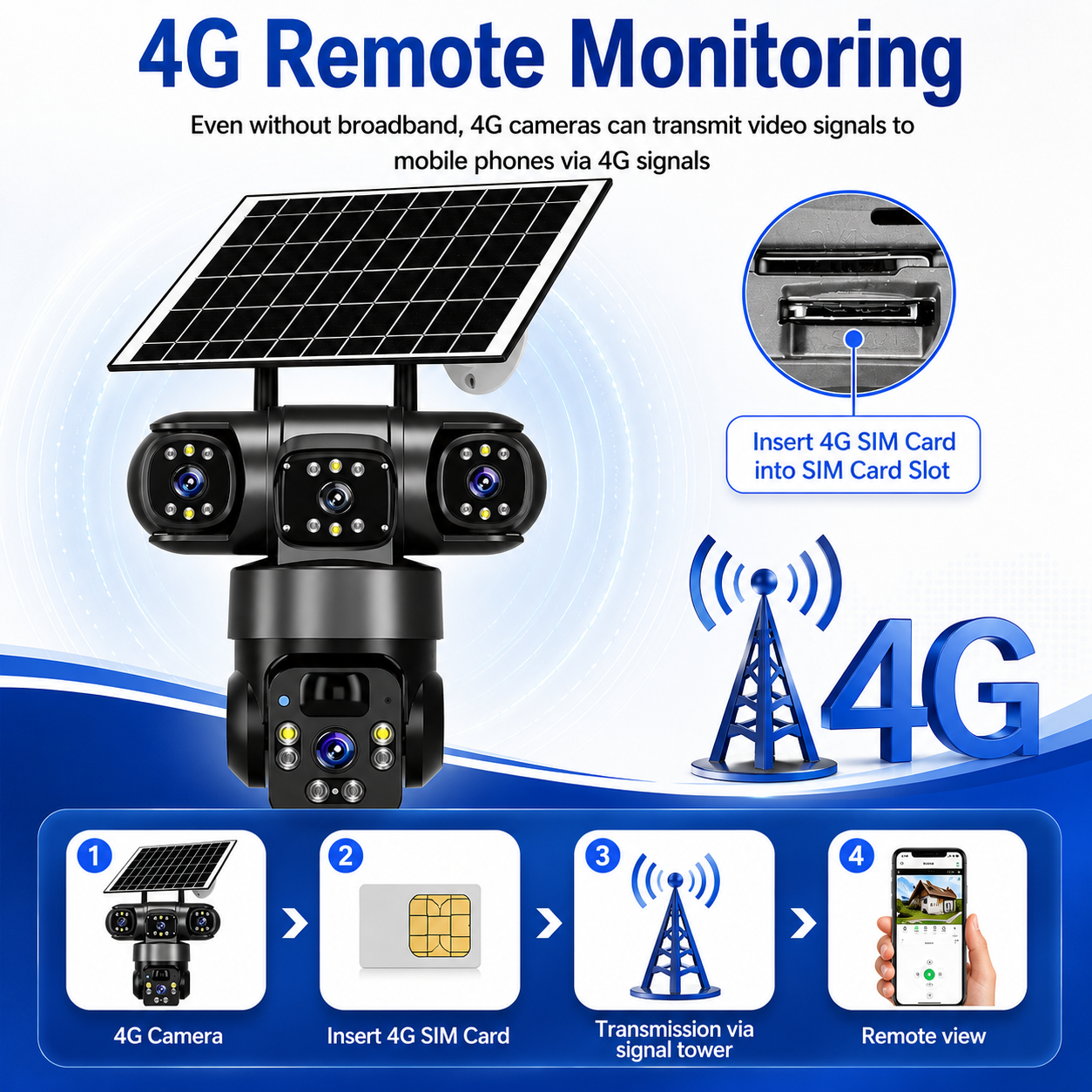
For Wi-Fi cameras, a router connection does not necessarily establish internet access. For 4G cameras, confirm active data service and reception if remote functions fail.
Use M03 or M04 when the underlying connection is unreliable. An NBN outage, mobile data issue or remote-platform incident cannot be repaired by changing the phone's sound setting.
Manufacturer push-notification documentation illustrates how delivery may involve the camera service and the phone platform. The exact architecture varies, so check official service information rather than assuming every delay originates in the camera.
8. Compare Accounts, Phones and Event Types
If one authorised phone receives alerts and another does not, compare those devices' account permissions and notification controls. Device sharing does not guarantee identical alert subscriptions.
If only one camera is affected, compare its schedule, event categories and mode with the others. Do not overwrite working cameras' settings to diagnose a single device.
Check whether the missing item is the notification itself or an optional image preview. Text alerts, thumbnails and cloud playback may have different requirements or service conditions.
Do not assume all notifications require a paid cloud-recording plan, or that buying one will fix blocked phone permissions. Confirm the exact feature's requirements.
9. Use a Controlled End-to-End Test
Change one justified setting at a time. Close live view if the manufacturer recommends testing in ordinary background conditions, then create a relevant event.
Record the event time, whether a clip was saved, when the phone showed an alert and whether it produced the expected presentation.
| Test result | What it helps establish |
|---|---|
| Clip exists, no phone message | Focus on the notification path |
| Message appears silently | Check presentation and interruption controls |
| One phone works, another fails | Compare phone settings and account access |
| One camera fails, others work | Compare camera-specific controls |
| Alerts fail only on one phone network | Investigate that connection and restrictions |
| Neither recording nor detection occurs | Return to the event-generation checks |
Repeat under the conditions that matter, including scheduled periods and a locked screen. A test while actively using the app may not represent everyday delivery.
10. Prevent Recurrence and Contact Support
Review permissions after replacing a phone or reinstalling the app. Check notification schedules after holidays or changes to working hours.
Keep legitimate software updated using the manufacturer's instructions. If the fault follows an update, record the versions and timing without assuming causation.
Before reinstalling or resetting, preserve necessary settings and confirm account access. A factory reset is not the first step when footage exists and only one phone remains silent.
Contact support if documented checks do not restore expected delivery. Provide camera and phone models, app and system versions, exact event times, network comparisons and whether other devices receive alerts. Use verified support channels and keep passwords and access codes private.
Final Thoughts
Start with a real detected event, then check camera-app rules, phone permissions, interruption settings and network access in order. Distinguish silence, delay and missing delivery rather than treating them as one fault.
Keep recording and notification tests separate. The goal is relevant alerts alongside useful saved footage, without unnecessary changes to detection, security or other household settings.
About SolarEasy
SolarEasy provides practical information about solar powered products for Australian homes, gardens and outdoor properties.
This Information Hub helps readers assess camera operation using the relevant manufacturer and phone-platform guidance.